|
“The desire to fly is an idea handed down to us by our ancestors..." - Wilbur Wright |

|
Software |
|
VectorXR VectorXR to nowoczesny bezpłatny zestaw narzędzi i dodatek w postaci warstwy API dla OpenXR, stworzony specjalnie z myślą o optymalizacji oraz dostosowywaniu wrażeń w grach VR – ze szczególnym uwzględnieniem symulatorów takich jak DCS World.
VectorXR is a modern, free toolkit and API layer add-on for OpenXR, created specifically to optimize and customize VR experiences — with a particular focus on simulators such as DCS World.
DLSS Swapper DLSS Swapper to popularne, darmowe narzędzie typu open-source do zarządzania wersjami biblioteki NVIDIA DLSS (nvngx_dlss.dll) w grach i symulatorach – w tym w DCS World. Pozwala na łatwą podmianę starszych bibliotek DLSS dostarczanych przez twórców gier na najnowsze wersje wydawane przez NVIDIA, co przynosi wymierne korzyści bez konieczności czekania na oficjalne patche.
DLSS Swapper is a popular, free, open-source tool for managing versions of the NVIDIA DLSS library (nvngx_dlss.dll) in games and simulators – including DCS World.
It allows you to easily replace older DLSS libraries provided by game developers with the latest versions released by NVIDIA, bringing tangible benefits without having to wait for official patches.
My DCS DLSS Swapper settings: 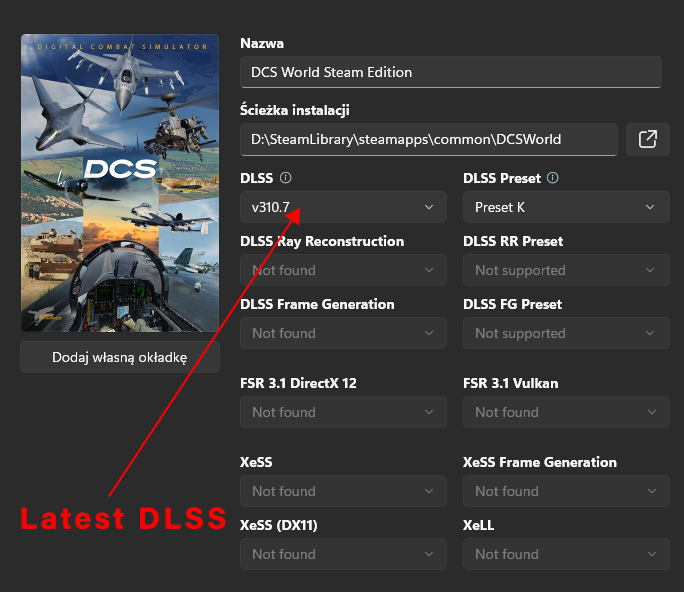 |
|
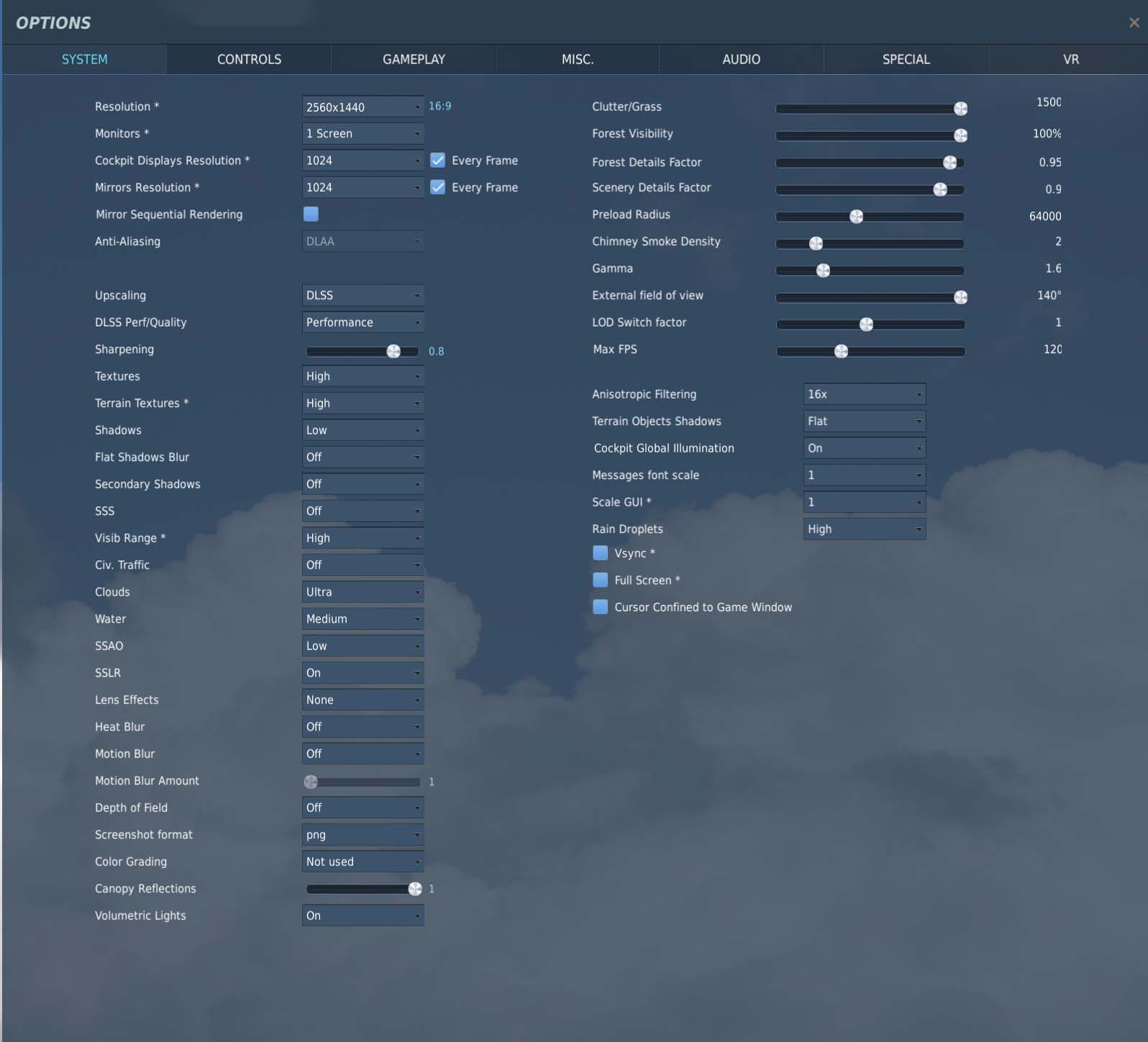
DCS - My VR Settings [ Updated on an ongoing basis ] |
|
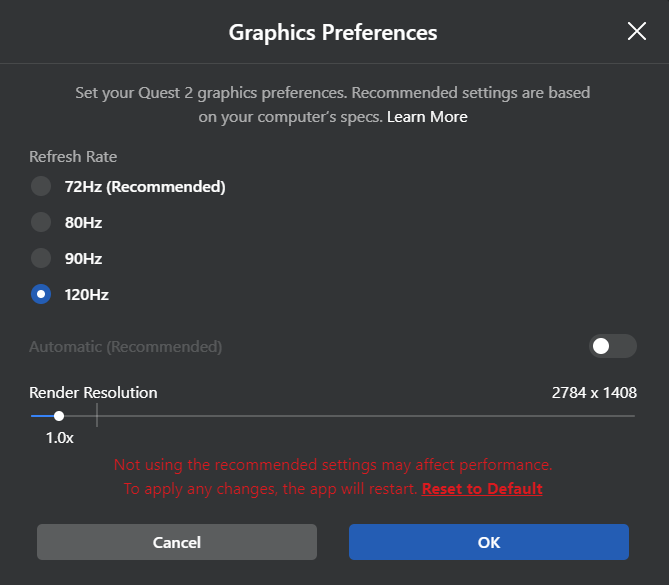
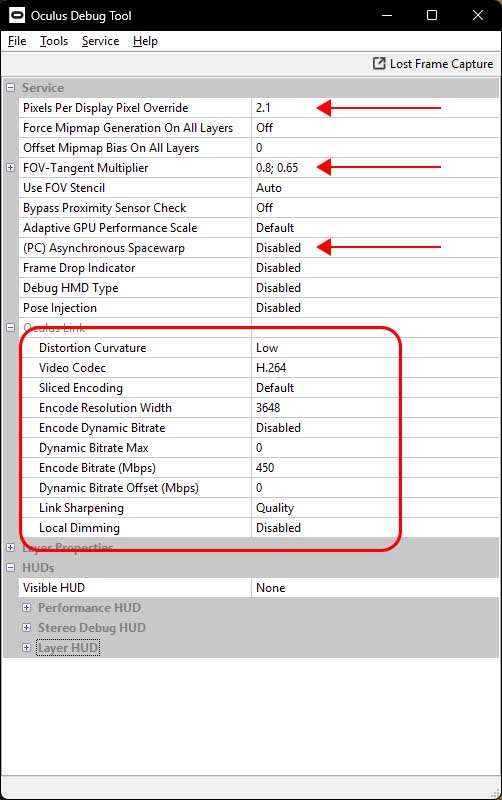
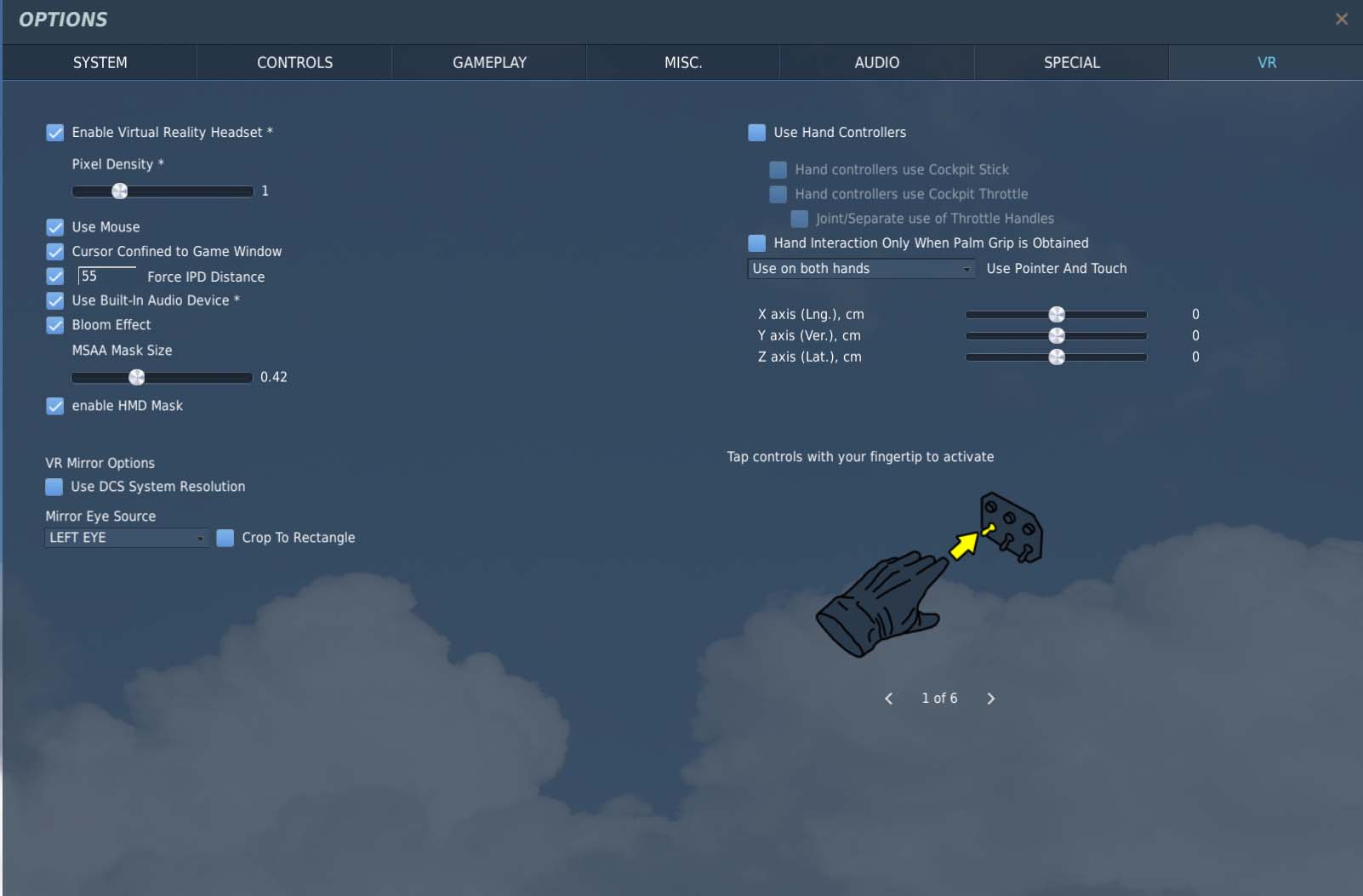
Po wielu testach i przeczytaniu wielu watkow dotyczacych tego tematu na forach internetowych. Oto czego się dowiedziałem: W Meta Horizon Link ustawić "Render Resolution" na 1.0x (2784x1408). Ilość Hz (odświeżanie) to już zależy od waszej GFX i CPU. W Ustawieniach VR DCS ustawić "Pixel Density" na 1. Rozdzielczosc VR najlepiej podniesc tylko w Oculus Debug Tool "Pixel Per Display Override" - w moim przypadku jest to 2.1 Drugim ważnym ustawieniam w Oculus Debug Tool zwiekszającym FPS jest "FOV-Tangent Multiplier" - w moim przypadku jest to 0.8;0.65. "FOV-Tangent Multiplier" - X;Y pierwsza wartość = X - oś pozioma (lewo-prawo) druga wartość = Y - oś pionowa (góra-dół) Ta opcja obcina obraz w pionie i poziomie. Niektorym może to przeszkadzac ale ja podczas latania w DCS czy MFS zupełnie tego nie odczuwam. Najważniejsze dla mnie to mieć około 120fps. To w VR daje najwiekszą imersję. Orginalnie jest 1:1 czyli 100% obrazu po obu stronach. Wpisanie 0.8;0.65 obcina obraz w poziomie o 20% a w pionie o 35%. Jak wpiszecie np 0.1;0.1 to obraz w Oculus bedzie mial wielkość około 2cm na 2cm. Ostatnią ważną opcją jest ustawienie "(PC) Asynchronous Spacewrap" na Disabled. ASW nie jest synchronicznym ogranicznikiem klatek, lecz systemem generowania sztucznych klatek (interpolacji) stworzonym z myślą o goglach VR. Co ważne ta opcja za każdym razem po restarcie Oculusa przestawia się na Auto. Trzeba zawsze ja wyłączyć po połaczeniu Oculusa z PC. Po wielu testach ustawienia Oculus Debug Tool w czerwonej ramce są idealnie dostosowane do mojej karty graficznej i CPU.
After many tests and reading numerous threads about this topic on internet forums.
Here is what I have learned: In Meta Horizon Link, set "Render Resolution" to 1.0x (2784x1408). The refresh rate (Hz) depends on your GFX card and CPU. In the DCS VR Settings, set "Pixel Density" to 1. It is best to increase the VR resolution only in the Oculus Debug Tool. "Pixel Per Display Override" - in my case, it is 2.1. The second important setting in the Oculus Debug Tool that can increase FPS is "FOV-Tangent Multiplier" - in my case, it is 0.8;0.65. "FOV-Tangent Multiplier" - X;Y First value = X - horizontal axis (left-right) Second value = Y - vertical axis (up-down) This option crops the image vertically and horizontally. Some people may find this annoying, but when flying in DCS or MFS, I don't notice it at all. The most important thing for me is to have around 120 FPS. In VR, this gives the greatest sense of immersion. Originally, it is 1:1, meaning 100% of the image is displayed on both sides. Entering 0.8;0.65 crops the image by 20% horizontally and 35% vertically . If you enter, for example, 0.1;0.1, the image in Oculus will be approximately 2 cm by 2 cm in size. The last important option is to set "(PC) Asynchronous Spacewarp" to Disabled. ASW is not a synchronous frame limiter, but an artificial frame generation system. Importantly, this option resets itself to Auto every time you restart Oculus. You always need to disable it after connecting Oculus to your PC. After many tests, the Oculus Debug Tool settings highlighted in the red frame are perfectly optimized for my graphics card and CPU. |